
txAdmin Login: How to Access and Manage Your FiveM Server Panel
txAdmin is the web-based control panel that comes with modern FiveM servers. It's the dashboard where you start/stop the server, install resources (recipes), manage whitelist and admins, and watch logs. But first you need to actually log in - and that's where a lot of first-time owners get stuck. This guide walks through every txAdmin login scenario you'll hit in 2026.
Where Is the txAdmin Login URL?
Your txAdmin panel is served on the same IP and port as your FiveM server, on port 40120 by default. If your server address is 123.45.67.89:30120, the txAdmin panel is http://123.45.67.89:40120. With CyberNex, the easiest way: open your control panel (Pterodactyl), go to the server's Console or Startup tab, and locate the 'txAdmin URL' / port link - usually shown as a quick-launch button. Alternative: from the server console, you'll see a line like 'txAdmin has started (http://123.45.67.89:40120)'. Save that URL. Some hosts also provide a subdomain like panel.yourserver.live that forwards to it - check your hosting dashboard.
First Login: Setting the Master Password
The very first time you open the txAdmin panel, you'll be asked to set up the admin. txAdmin will show a setup screen where you enter an email (optional) and choose a 'Master Password'. This is the password you keep - it controls all admin access to the panel. Important session flows: choose a strong password and store it somewhere safe (a password manager), because if you lose it you'll have to reset via the server console. After saving, txAdmin generates a login token for this session and prints it in the console; you can log in with the master password directly. On CyberNex, if you use a txAdmin Recipe to deploy, the initial setup runs automatically and you'll be prompted to set the password on first visit.
Forgot Your txAdmin Password? How to Reset
Lost the master password? Reset it from the server console. Steps: 1) Open the console in your hosting panel (or terminal). 2) Type: txadmin masterPassword <newpassword> (e.g., txadmin masterPassword MyNewPass123) and press Enter. 3) txAdmin confirms the change; refresh the panel and log in with the new password. Rules: the password must be at least 8 characters and contain only certain characters (letters, numbers, some symbols). Do NOT start or end it with special characters if you get failures. If you can't type commands, use the 'restart server' option and catch the console early, or ask your host to reset it for you via their dashboard.
Login Tokens and Multi-Admin Access
txAdmin supports several login methods beyond the master password. Login Tokens: from the Settings > Login Tokens page, create tokens (e.g., read-only, or specific expire dates). These are the ones you put in URLs for staff like 'http://ip:40120/status?token=xxx'. Multiple admins: enable 'txAdmin requires admins to whitelist' and add offline players or Steam IDs as admins in the Admin Manager, then each can log in with their own credentials linked to their player identity. 2FA: enable it for the master account from Settings > Security for an extra layer. For security hygiene in 2026: never share the master password; give trusted staff a token or admin role instead.
What Can You Manage After Logging In?
Once logged in you get the full control room: Console - live server output and the ability to run commands (start/stop/restart, and resource commands like restart <resource>). Players - see who's online, warn/kick/ban, and manage whitelist. Recipes - deploy bases (QBCore, ESX, ox_core, CFX Default) with one click. Resources - the file structure and start order (server.cfg). Performance - monitor CPU/RAM and the tick/TPS of the game server. Ban Manager - persistent bans and history. Logs - full history for debugging. For most owners, the Console and Players tabs are what you'll live in. If your server crashes and won't restart, the console here shows exactly why - check the last lines before the crash.
Troubleshooting txAdmin Login Problems
Can't reach the panel? Check the port is correct (40120, not 30120), confirm the server is running, and test from another device. If the page loads but login fails, confirm you're using the master password (tokens are different). 'No access - please ask the server owner' means you're not whitelisted as admin in the Admin Manager when admin whitelist is required. Page times out? The panel binds to the server's local network; DDoS protection or firewall may block remote access - use the host's provided panel link or temporarily allow your IP. In every case, the txAdmin log file (which contains the login URL and setup tokens for the first run) is your source of truth - ask CyberNex support for the panel link if you can't find it, and we'll point you to the exact URL for your server.
The txAdmin login is your gateway to managing a FiveM server - access it at the panel URL (default port 40120), set a strong master password on first launch, and reset it via 'txadmin masterPassword' if you ever forget it. Use login tokens or admin roles for staff, and keep the Console and Players tabs in your daily routine. Every CyberNex FiveM plan ships with txAdmin pre-installed and a one-click panel link - deploy, set your password, and run your server from the browser in minutes.
Ganidu Sathishka
Support EngineerGanidu is a technical support engineer at CyberNex who helps customers deploy and configure their game servers. He creates beginner-friendly setup guides and troubleshooting tutorials based on common customer questions.
CredentialsTechnical support engineer at CyberNex with 4+ years helping customers deploy and configure game servers. Expert in troubleshooting FiveM, Minecraft, and Discord bot hosting issues across Linux and Windows environments.
More in fivem
How to Create a FiveM Server globally - Complete Guide
12 min read
Best FiveM Scripts in 2026 for RP, PvP, and Custom Servers
9 min read
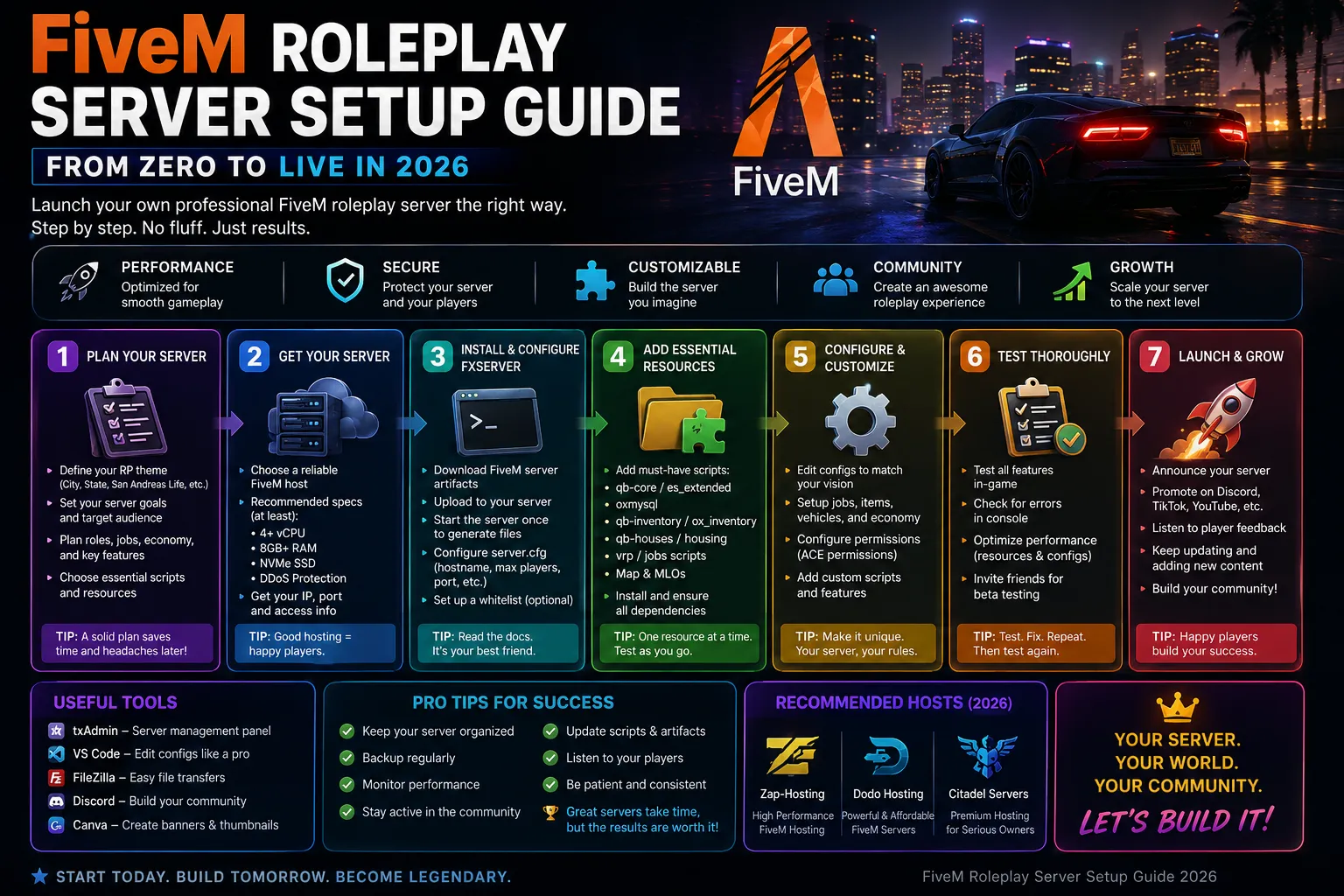
FiveM Roleplay Server Setup Guide - From Zero to Live in 2026
14 min readFiveM Server Hosting
Launch your FiveM server with txAdmin pre-installed. ESX, QBCore, Qbox, vRP, with DDoS protection and a ready database.